Blog: Technical Guides
Partnerships |
Snowflake
By:
24 June 2025
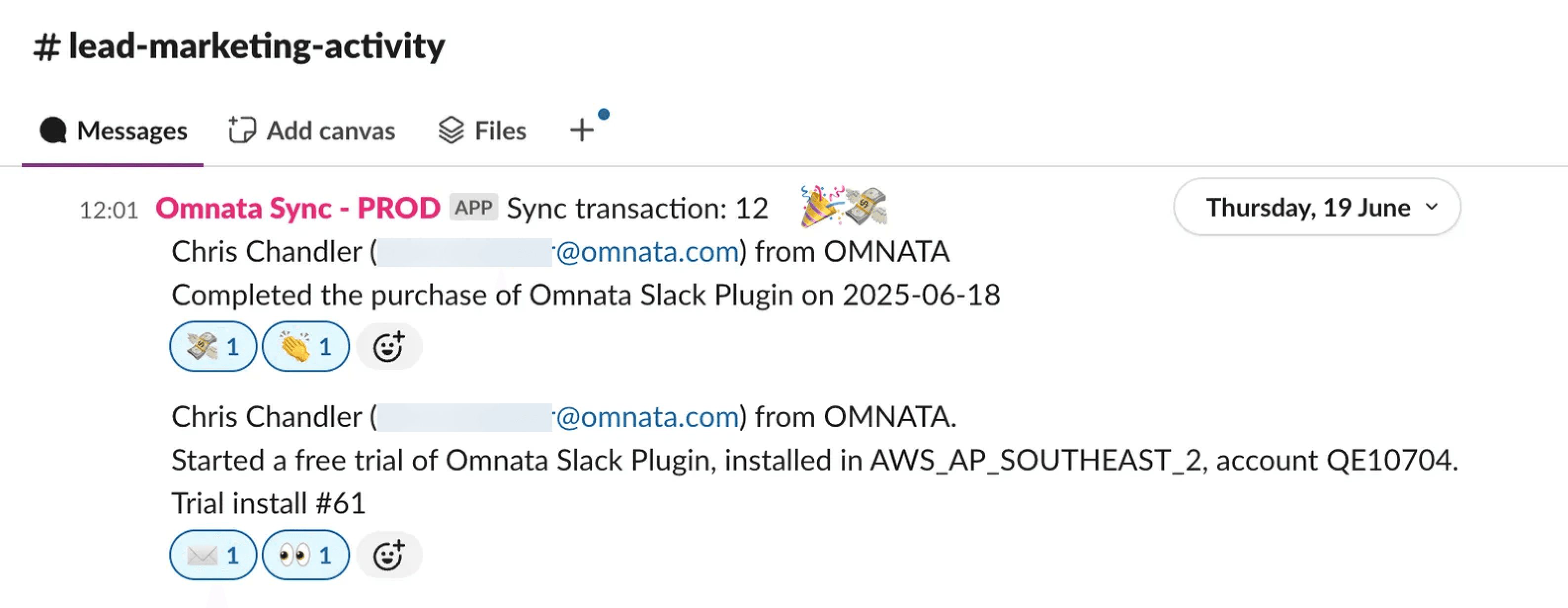
At Omnata, we push all of our Snowflake Marketplace events to Slack as a primary workspace.
We have a shared channel between our sales and Snowflake partner team to collaborate on new opportunities, free trials and closed won deals.
We are working on adding support for Microsoft Teams (contact us to request access)
How to do this using Omnata
There are a few simple steps to configuring this for your provider account.
Install the Omnata Sync Engine and the Slack Plugin from the Snowflake Marketplace
Create an outbound sync source view off the Snowflake’s Listing Event table
Configure an outbound sync(s) to your Slack channels
Sit back and watch your installs and purchase notifications roll in
Install the Omnata native apps
Omnata Sync Engine - This is the main control pane for connections, sync configurations and monitoring.
Omnata Slack Plugin - This is the connector to the Slack endpoints and it's free.
Create a view of the Listing Events tables that will work for Omnata outbound syncs.
Omnata manages the incremental records that need to be push to destinations. For this, your table needs a Unique ID and you can add in any other fields you want to appear in the Slack message.
Here is a basic template to fire trial notifications, you can get as creative as you like with other information from Snowflake.
Configure the outbound sync to Slack
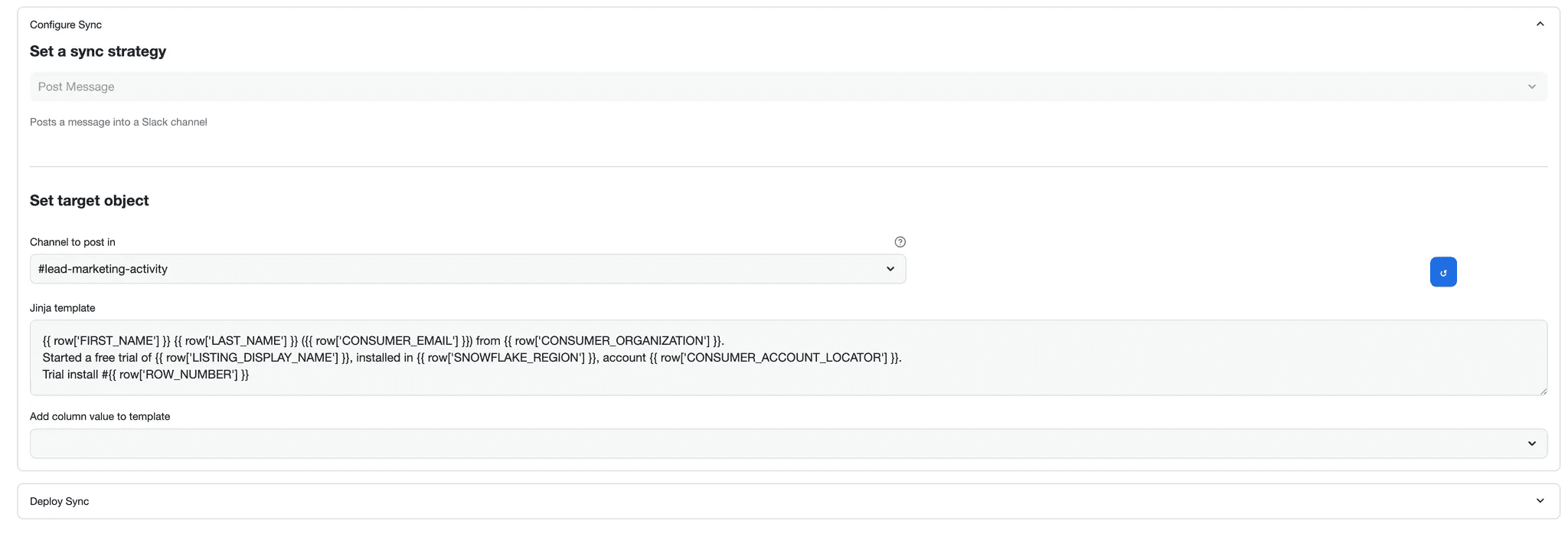
Omnata’s configuration wizard steps you through the process of creating an outbound sync. For Slack, it’s quite simple, Omnata will post a message whenever a new record appears in the source table.
You can add any Snowflake column in the source table as a field in the Jinja template.
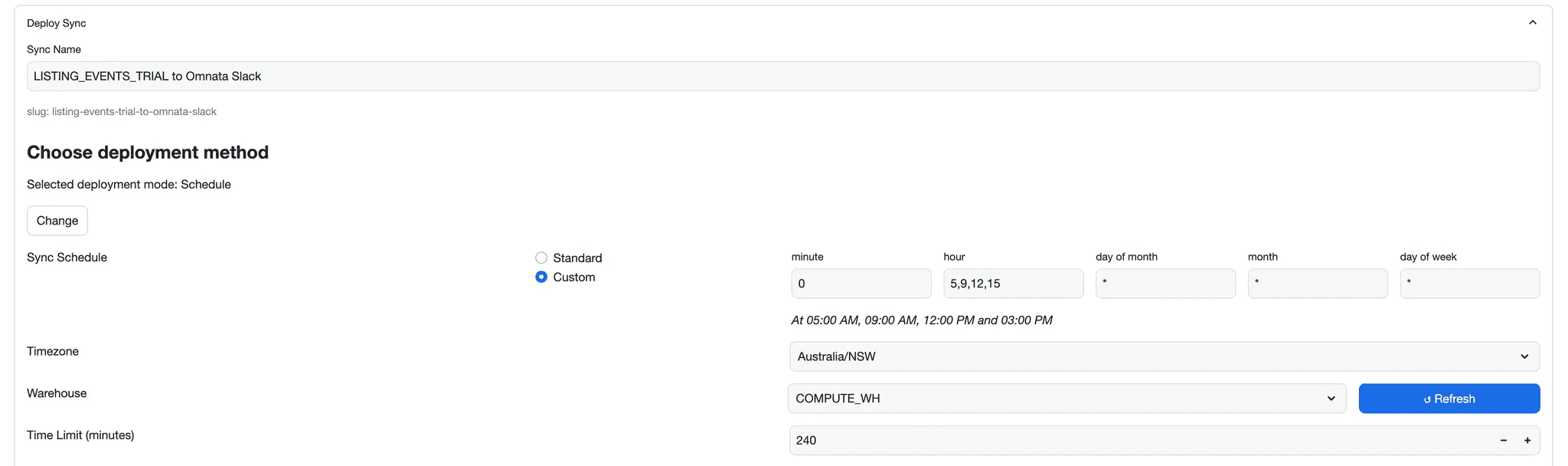
Omnata runs on a schedule either with uniform gaps or on a cron schedule. We run ours four times a day on a cron schedule to pick up any events that drop into the Listing Events table during business hours.
Watch those notifications roll in…