Blog: Product
New features |
Product updates
By: Chris Chandler
16 March 2026
Got DEV and PROD Snowflake accounts?
It has always been popular to deploy Snowflake using a single account. For many customers that's still the right fit — simpler to manage, no cross-account complexity, and perfectly sufficient for their needs.
However, multi-account setups are becoming more common for a number of reasons. Some organisations reach a point where they want a hard infrastructure boundary between production and non-production — not just RBAC and naming conventions, but physically separate accounts. The motivations vary: stricter data governance, regulatory requirements, organisational structure, or simply the confidence that a DEV workload can never touch production data.
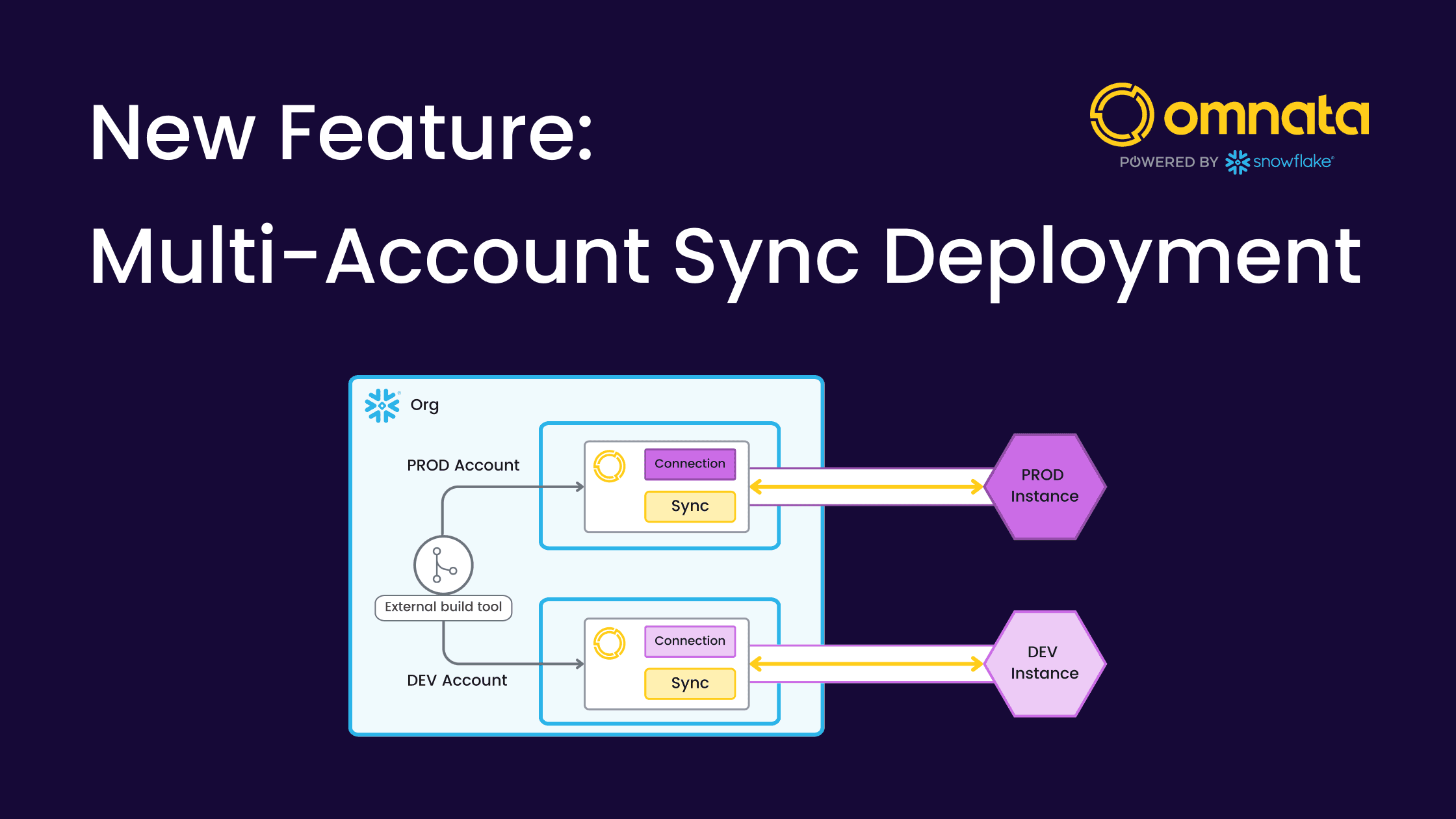
When that requirement exists, each Snowflake account maps one-to-one to its corresponding environment of the target app. Your DEV Snowflake account connects to your Salesforce sandbox. Your PROD Snowflake account connects to Salesforce production.
The challenge: Native Apps install per account
Omnata runs as a Snowflake Native App which is installed into a single Snowflake account. That means sync configurations also live in an account. Without a way to manage them centrally, you're faced with a familiar problem: configuring the same sync twice, by hand, hoping nothing gets missed. Any change to a field mapping, a filter, or a schedule has to be replicated manually across accounts. That's slow, error-prone, and the kind of thing that causes production incidents.
Omnata's Multi-Account Support solves this.
How it works
When you configure a sync for multi-account deployment, Omnata generates account aware stored procedures for creating and modifying that sync configuration. The stored procedure is deployed and run across all your accounts — but when it executes, it reads the configuration that has been defined for the account it is currently running in. One procedure, applied everywhere, with each account picking up its own settings automatically.
Target app connections are mapped one-to-one per account, so the right Snowflake account always talks to the right endpoint. Most sync settings — streams, sync parameters, field mappings, and sync strategy — are identical across accounts. The things that legitimately differ, like inbound storage locations and deployment schedules, can be configured per-account within Omnata.
How to set up Multi-Account deployment
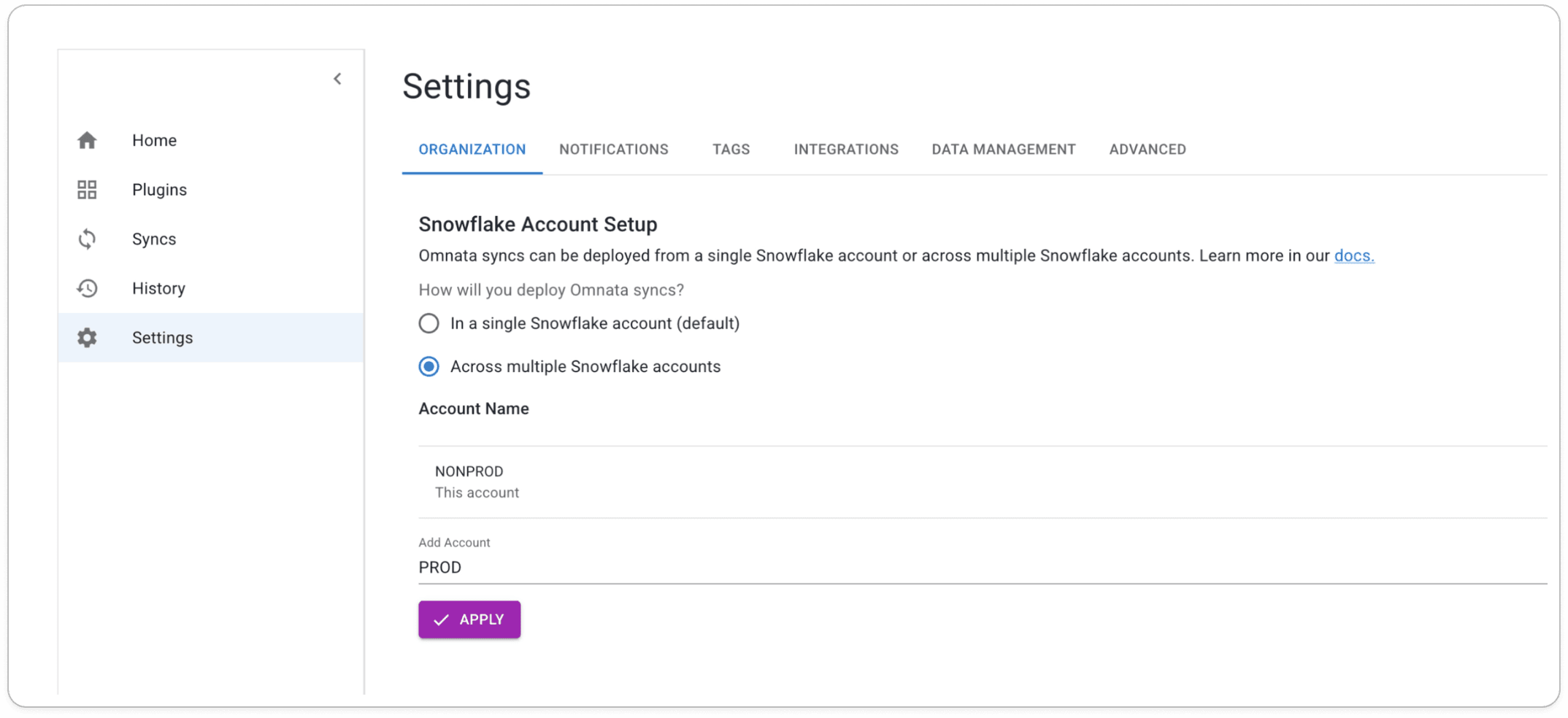
Register your other Snowflake accounts — In Omnata Settings, navigate to the Snowflake Account Setup section. By default, Omnata is deployed to a single Snowflake account. To enable multi-account deployment, select "Access multiple Snowflake accounts" and add each account by its Account Name.
(screenshot — settings page)
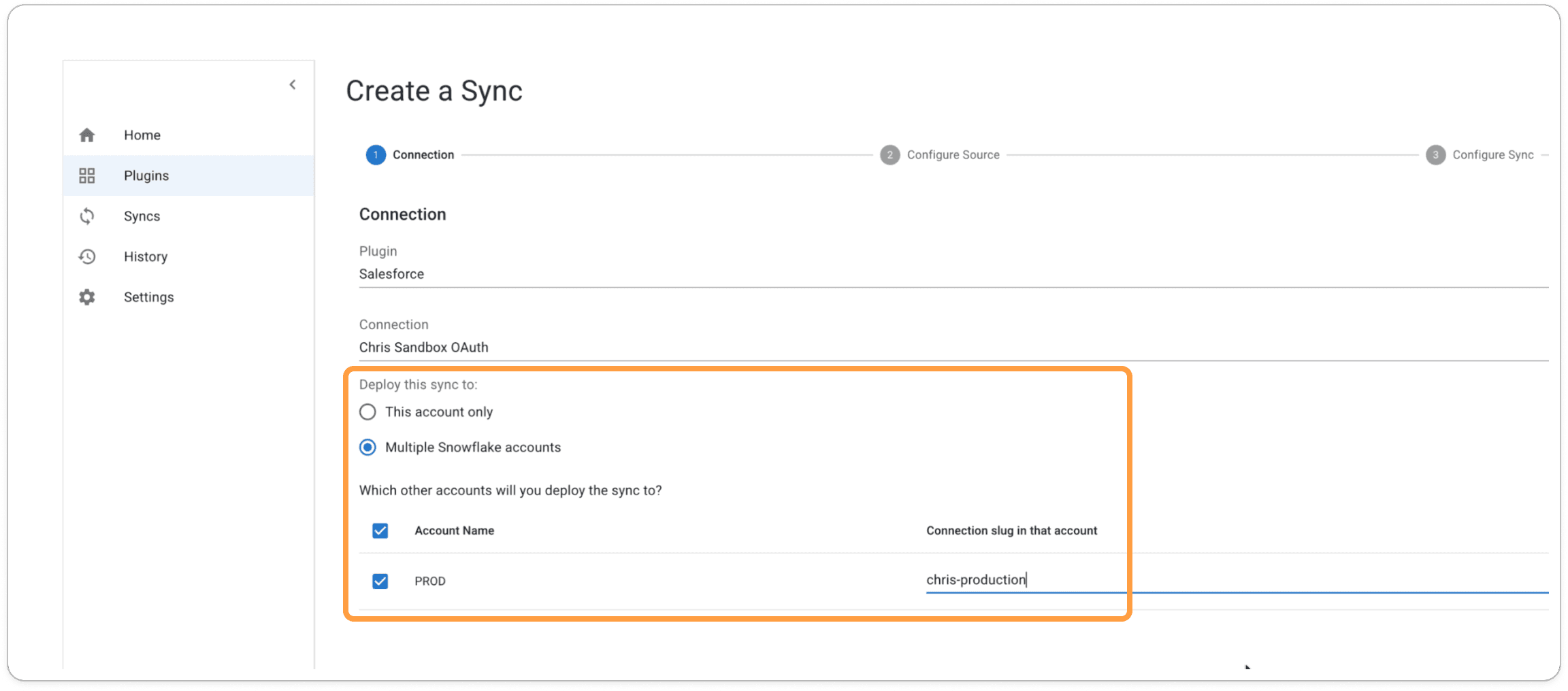
Select Multi-Account deployment in the sync config — When creating a sync, you'll be asked how you want to deploy it: to this account only, or across multiple Snowflake accounts. Select "Multiple Snowflake accounts" and choose which accounts this sync should be deployed to. If your connection slugs differ between accounts, you can define the mapping here.
(screenshot — create a sync, connection step)
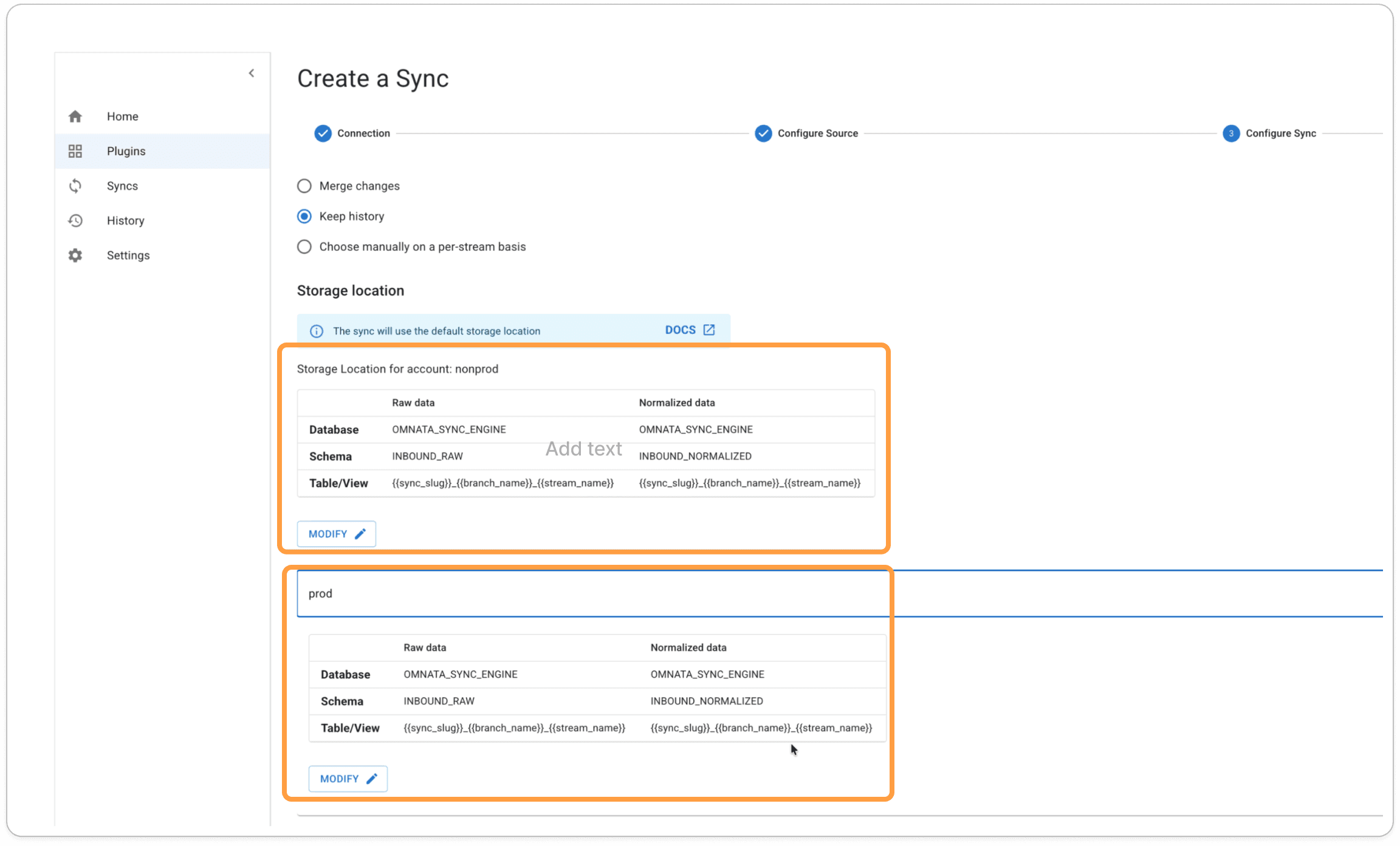
Configure per-account storage locations — Multi-account syncs share identical settings for streams, sync parameters, field mappings, and sync strategy across all accounts. However, inbound storage locations can vary — for example, different databases or schemas per account. These can be defined individually for each account in this step.
(screenshot — create a sync, storage location step)
Configure per-account deployment settings and get the stored procedure — Deployment settings such as schedule can also vary per account and are configured here. Once the sync is created, go to the Deployment tab and click View SQL. This provides the account context aware stored procedure for creating and modifying the sync configuration — ready to be dropped into your deployment pipeline.
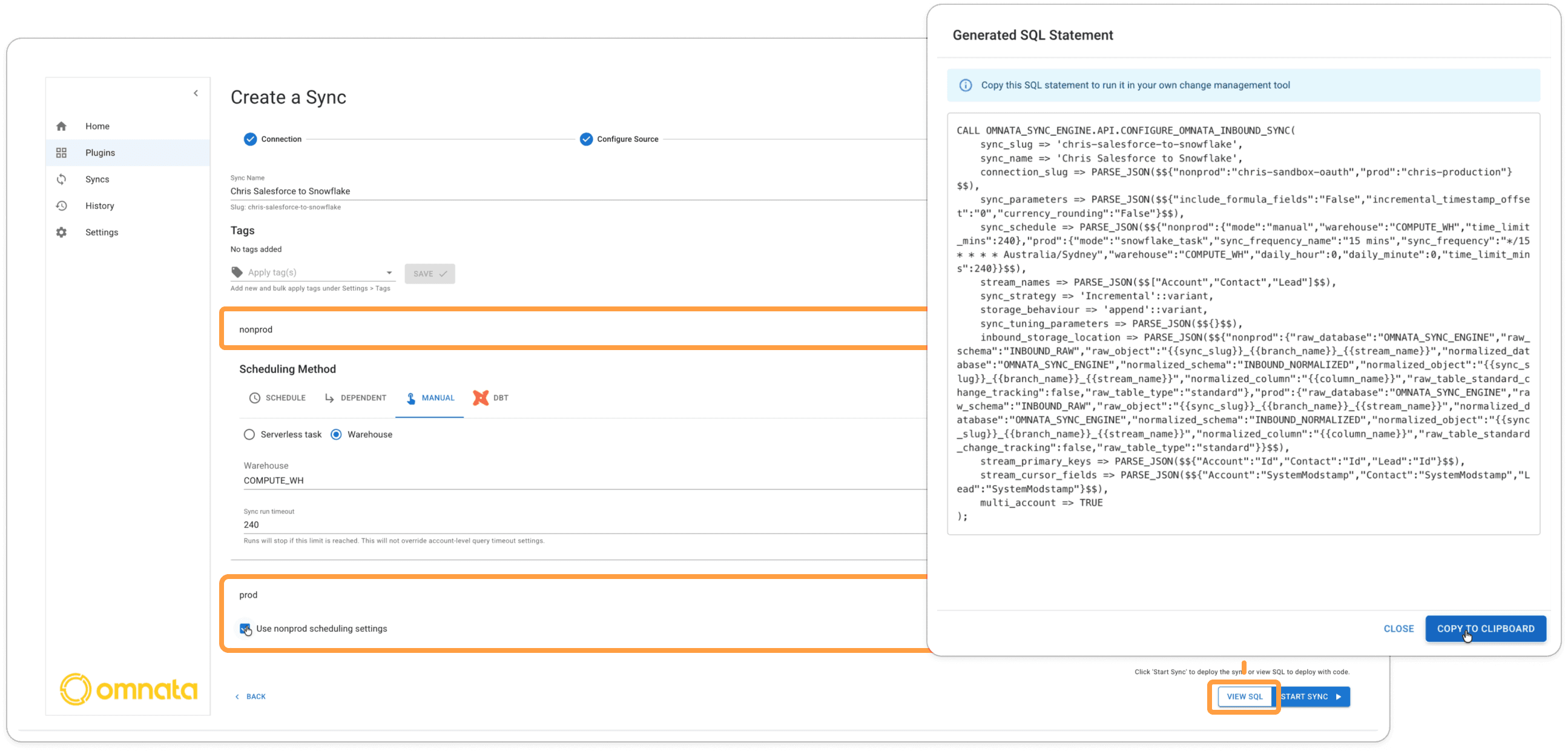
(screenshot — deployment step and SQL modal)
What do we mean by account context aware?
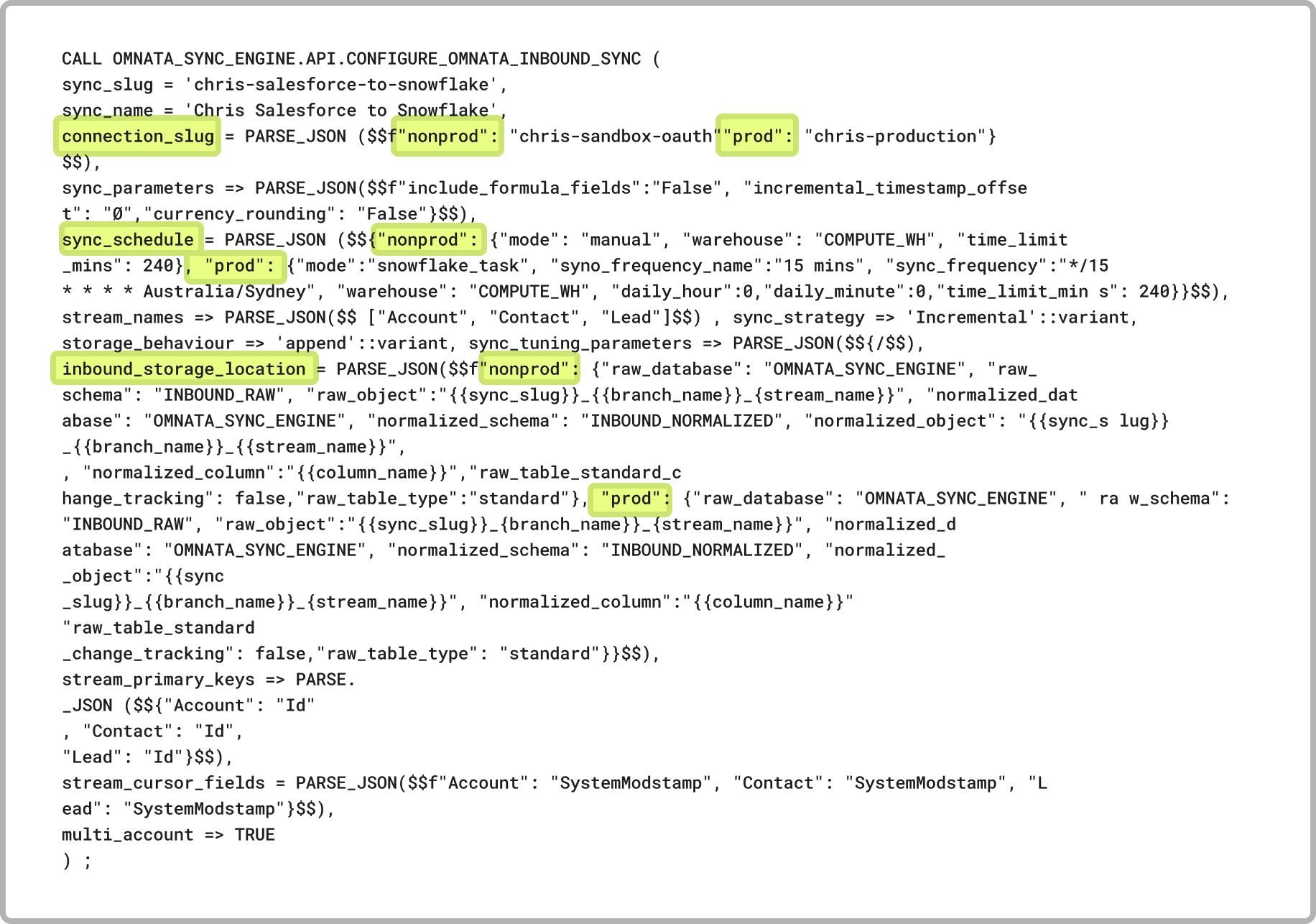
The stored procedure contains config parameters for each account allowing it to be deployed identically across accounts from one central place or each account. Since the Omnata app is aware of its current Snowflake account, the "prod' configuration will be picked up by the app installed on "prod", and so on.
Below you can see the parameters that can vary between accounts. In this case for an inbound sync, that's:
Connection slug, Sync Schedule, and Inbound Storage Location.
Programmatic deployment: managing syncs at scale
Account context aware stored procedures do more than solve the multi-account problem — they make Omnata sync configuration programmable, which matters a great deal at scale.
For teams with a handful of syncs, clicking through the UI is fine. But some teams have tens or hundreds of syncs to manage. Think of a platform team supporting multiple business units, each with their own set of Salesforce objects and sync requirements. Or a SaaS company provisioning a dedicated sync configuration per customer. Configuring and maintaining these by hand isn't just slow — it's a risk. One missed field mapping or misconfigured schedule, and you have an inconsistency in production that's hard to track down and harder to audit.
When sync configuration lives in a stored procedure, it becomes code. And code can be managed like any other part of your data infrastructure. The stored procedure can be deployed using the same tools your team already uses for Snowflake — including popular options like dbt, Schemachange, Flyway, Liquibase, or any CI/CD pipeline using GitHub Actions or similar. If your transformation and deployment tooling can run SQL in Snowflake, it can deploy Omnata sync configuration too.
This means you can:
Template and generate configurations programmatically — spin up new syncs following the same process as any other code deployment, without anyone clicking through a wizard.
Version control in Git — full history of every configuration change, with the ability to roll back to any previous state.
Integrate with your existing Snowflake tooling — dbt projects, Schemachange migrations, CI/CD pipelines — the stored procedure fits into whatever you're already using.
Code review before changes go live — the same pull request and approval process you'd use for any code change applies to sync configuration too.
Combined with multi-account support, this means a single stored procedure can be tested in your DEV account, reviewed, approved, and then deployed to production through your normal release process. Each account picks up its own configuration automatically. Your deployment process stays clean, auditable, and consistent.